Installation
Integrate Testream with Jira to view test results, trends, and artifacts directly in your Jira workspace.
Prerequisites
- Jira Cloud instance (Atlassian Cloud)
- Jira administrator permission to install apps (or ability to request app installation)
- Active Testream account with a test project
Step 1: Install from Atlassian Marketplace
Use the official listing: Testream for Jira on Atlassian Marketplace.
For Jira Administrators
- Log in to your Jira instance as an administrator
- Click the Apps dropdown in the top navigation bar
- Select "Explore new apps" (or "Find new apps")
- In the search box, type "Testream for Jira"
- Click on the Testream for Jira app tile in the search results
- Click the "Get app" button
- Wait for the installation success message to appear
The app will be installed and enabled automatically for your entire Jira workspace.
For Non-Administrators
If you don't have admin permissions:
- Open the Testream for Jira Atlassian Marketplace listing
- Click "Request installation"
- Your Jira administrator will receive a notification to approve the installation
Step 2: Get Your Testream API Key
Before you can view test data in Jira, you need an API key from Testream:
- Visit testream.app/projects
- Log in to your Testream account (or create one if needed)
- Create a test project or select an existing one
- Navigate to Settings → API Keys
- Click "Generate New API Key"
- Copy the API key immediately (it won't be shown again)
- Store it securely - you'll need it in the next step
Step 3: Configure API Key in Jira
Now connect your Jira workspace to Testream using the API key:
- In Jira, click Apps in the top navigation
- Select Testream for Jira from the dropdown (or find it in the sidebar)
- You'll see the API Key Management screen:
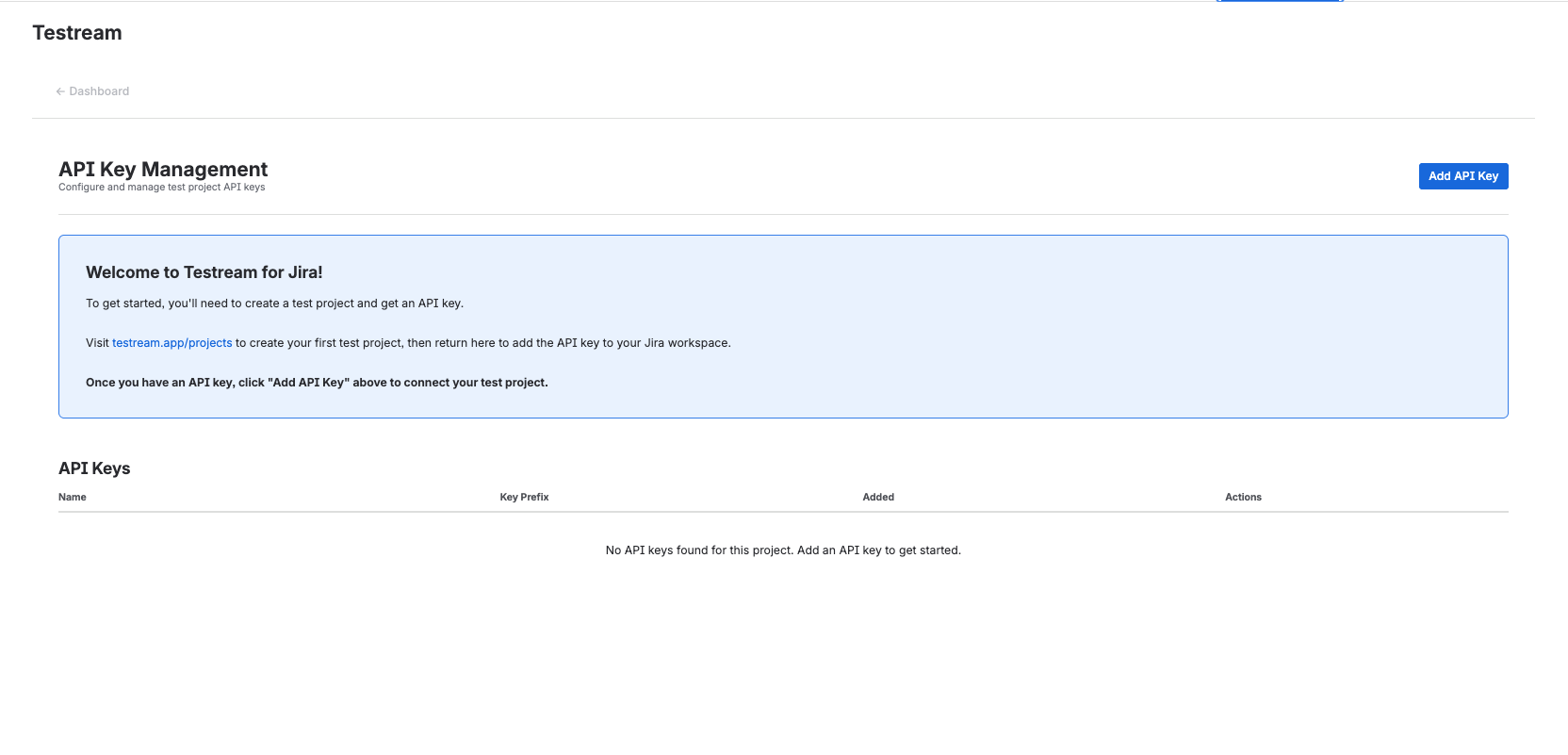
- Click the "Add API Key" button
- Paste your Testream API key into the input field
- Click "Save" or "Connect"
Once connected, test data from your Testream projects will start appearing in Jira.
Step 4: Verify Installation
After completing the setup, verify everything is working:
- Navigate to Apps → Testream for Jira in your Jira workspace
- You should see the dashboard with test metrics (if you have test data)
- If you see test runs and statistics, the integration is working correctly
If you don't see any data yet, run your tests with a Testream reporter configured, and results will appear within minutes.
Troubleshooting
App not appearing in marketplace
Possible causes:
- Your Jira instance is not on Atlassian Cloud (Server/Data Center not supported)
- Network or firewall restrictions blocking marketplace access
- Regional availability limitations
Solution:
- Verify you're using Jira Cloud at
*.atlassian.net - Contact your IT team about marketplace access
- Reach out to Testream support at contact@testream.app
Installation fails
Common issues:
- Missing administrator permissions in Jira
- Organization policies blocking new app installations
- Browser extensions interfering with installation
Solution:
- Confirm you have Jira administrator role
- Request installation approval from your Jira admin
- Try installation in an incognito/private browser window
API Key not working
Check:
- API key copied correctly without extra spaces or line breaks
- API key generated from the correct Testream project
- API key not revoked or expired in Testream settings
Solution:
- Copy the API key again directly from Testream
- Generate a fresh API key and try again
- Verify the key in Testream Settings → API Keys shows as active
No test data appearing
If the app is installed but shows no data:
- Test results must be uploaded to Testream first using a reporter
- Configure an reporter that is compatible with your test suite (e.g., Playwright, Jest, etc.)
- Run your tests with the reporter configured
- Wait a few minutes for data to sync to Jira
Uninstalling
To remove the Testream for Jira app:
- Go to Apps → Manage apps (requires Jira admin permissions)
- Find "Testream for Jira" in the installed apps list
- Click the settings icon next to the app
- Select "Uninstall"
- Confirm the uninstallation when prompted
Note: Uninstalling removes the Jira integration, but your test data remains safely stored in Testream and can be viewed at testream.app.
What's Next?
- Learn how to use the integration to view test results
- Configure test reporters to send data to Testream
- Set up CLI Reporter for automated uploads